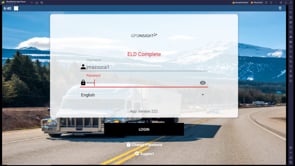
The ELD Complete solution supports Bring Your Own Device (BYOD) via Bluetooth. Drivers can download the GPS Insight ELD Complete app (Android and iOS compatible) to their mobile device from the Apple App Store or the Google Play Store. The BYOD solution requires a GPSI-5000 device installed in the vehicle.
We recommend keeping a sticker, or card, in the vehicle with the serial number of the installed GPS device for easy reference during future driver assignments.
Log in to the ELD Complete application using valid credentials.
Select Tractor and tap Save.
Enter dash odometer values and tap Save.
Tap the device, then tap Continue.
Serial numbers are unique to each truck, please contact your Administrator to confirm your truck's serial number.
Ensure all diagnostics pass with values shown in green (see example below), then tap Continue.
You are ready to drive.
Additional Resources
[toggles]
[toggle title="Disconnecting Bluetooth Vehicle Connection" class="in"]
Tap on the hamburger menu from the top-left corner of the application, then tap Scan Devices.
From the ECM-Linked Devices screen, tap Scan Devices.
The Connected status (in green) is no longer shown, tap Continue.
The screen navigates to the Diagnostic page. All values from this page will be shown in red, which confirms the Bluetooth connection has been disabled.
You can now log out and leave the Bluetooth connection available to the vehicle for the next driver.
[/toggle]
[toggle title="Connecting to Bluetooth While Logged In"]
Tap on the hamburger menu from the top-left corner of the application, then tap Scan Devices.
Tap on the applicable device, then tap Continue.
Ensure all diagnostics pass (values are shown in green), then tap Continue.
The ELD Complete solution supports Bring Your Own Device (BYOD) via Bluetooth. Drivers can download the GPS Insight ELD Complete app (Android and iOS compatible) to their mobile device from the Apple App Store or the Google Play Store. The BYOD solution requires a GPSI-5000 device installed in the vehicle.
Login Notes
The login name and password are for the specific driver’s use only and must not be shared with any other person, and cannot be duplicated.
A driver can only be logged in to one ELD at a time. In order for the driver to log in on a different mobile device, the driver must change to off-duty status and log out from the previous device.
If a driver is still logged into an ELD, but the device ceased to function or gets lost, the driver must call the home base carrier and ask for his login name to be unlocked. The unlock process will change the driver’s status to off-duty at the time the driver solicited the login unlock.
Selecting a Vehicle Profile (Assets)
To select an asset:
Log in using your username and password.
Tap Select Tractor.
Search Tractor in asset listing or enter the Trailer name in the Search bar, tap the asset to select it, then tap the checkmark icon (top-right corner).
Once you select a tractor from the downloaded list, the ELD will display the VIN number, license plate, and registration state on the list.
Enter the asset's odometer in the "Odometer information" field and tap Save.
Tap Scan.
Select the device and tap Continue.
Note: If the driver scans for a device and doesn’t find one, there are a couple of possible reasons:
Another Driver is Still Connected: Another nearby driver may still have the device connected in their app. If that’s the case, the device won’t appear in the scan results for others. Incorrect ELD Script Installed: The device may have the wrong ELD script loaded. In this case, the driver should contact Support for assistance. Another driver is nearby and still has this device connected in their app, as you won't be able to see the device.
The Diagnostic screen appears.
Note: If the Diagnostics Screen looks like the example below, please contact Support immediately.
If all data points are green in the diagnostic, tap Continue.
You are ready to drive.
To disconnect from the device, rescan for devices by performing Step #5 above, and instead of selecting a device from the list, tap Continue.
Rescanning Bluetooth Connection
A Bluetooth icon and a truck icon in red on the ELD main screen indicate the application has lost Bluetooth connection.
Tap the Hamburger Menu (top-left).
Tap Scan Devices.
Tap Scan.
Select the device and tap Continue. Note: Serial numbers are unique to each truck, please contact your Administrator to confirm your truck’s serial number.
Note: If the driver scans for a device and doesn’t find one, there are a couple of possible reasons:
Another Driver is Still Connected: Another nearby driver may still have the device connected in their app. If that’s the case, the device won’t appear in the scan results for others. Incorrect ELD Script Installed: The device may have the wrong ELD script loaded. In this case, the driver should contact Support for assistance. Another driver is nearby and still has this device connected in their app, as you won't be able to see the device.
If all data points are green in the diagnostic, tap Continue.
Switching Vehicles
To connect to the new unit, follow the instructions below.
Tap the Hamburger menu.
Tap Vehicle Profile.
Tap Select Tractor.
Search Tractor in asset listing or enter the Trailer name in the Search bar, tap the asset to select it, then tap the checkmark icon (top-right corner).
Enter the asset's odometer in the "Odometer information" field and tap Save.
Tap OK on the pop-up stating the vehicle profile was saved.
Tap the Hamburger menu (top-left).
Tap Scan Devices.
Tap Scan.
Select the device and tap Continue. Note: Serial numbers are unique to each truck, please contact your Administrator to confirm your truck’s serial number.
Note: If the driver scans for a device and doesn’t find one, there are a couple of possible reasons:
Another Driver is Still Connected: Another nearby driver may still have the device connected in their app. If that’s the case, the device won’t appear in the scan results for others. Incorrect ELD Script Installed: The device may have the wrong ELD script loaded. In this case, the driver should contact Support for assistance. Another driver is nearby and still has this device connected in their app, as you won't be able to see the device.
If all data points are green in the diagnostic, tap Continue.
From the Home Screen, tap the Inspections Report button.
Tap on the + button (bottom of the screen).
Tap the vehicle inspection regulation region from the options shown, then tap OK.
Additional options are available for Quebec compliance: heavy vehicle, bus, and motor coach.
A New Inspection Form appears.
Inspect the tractor/trailer, tap the checkbox next to any defective item you may have found, and enter remarks for the checked items then tap OK.
Tap NEXT.
We have separated items under the C-TPAT 17 agreement in order to help you reduce border delays (if applicable) and minimize risks.
Enter a remark and indicate if defects were corrected or not.
Sign the inspection report. If you have not added a signature, tap the pencil icon at the bottom right corner of the screen.
Sign on the line above "Put your signature here" and tap Save & Finish.
If defects were found and corrected, you can ask the mechanic for a signature. There is a third, optional signature that some carriers require before a vehicle leaves the yard.
Tap Upload, then OK.
The DVIR is submitted.
[post_title] => Driver Vehicle Inspection Reports (DVIR)
[post_excerpt] =>
[post_status] => publish
[comment_status] => closed
[ping_status] => closed
[post_password] =>
[post_name] => driver-vehicle-inspection-reports-dvir
[to_ping] =>
[pinged] =>
[post_modified] => 2022-11-18 13:07:01
[post_modified_gmt] => 2022-11-18 20:07:01
[post_content_filtered] =>
[post_parent] => 24409
[guid] => https://help.gpsinsight.com/?post_type=documentation&p=25906
[menu_order] => 3
[post_type] => documentation
[post_mime_type] =>
[comment_count] => 0
[filter] => raw
)
[3] => WP_Post Object
(
[ID] => 24409
[post_author] => 12
[post_date] => 2022-11-18 13:03:26
[post_date_gmt] => 2022-11-18 20:03:26
[post_content] => ELD Complete is an Hours of Services solution that is fully FMCSA-certified and provides both Hours of Service (HOS) and DVIR capabilities, in addition to data for IFTA reporting.
The following guide consists of the below articles and provides a high-level overview of the features provided in the GPS Insight ELD Complete app.
The following accounts are available in ELD Complete:
Driver: Unique, per-driver account used by drivers' Hours of Service and ELD regulations. This account records duty status changes (RODS) and allows the export of driver’s records for printout, display, and agent output file generation.
Support: Account used by the carrier and ELD manufacturer to set up, configure, update and troubleshoot the ELD. No duty status changes are recorded with this account and no access to the driver’s record of duty status changes is permitted under the support account.
Non-authenticated: All operation of a commercial motor vehicle (CMV) is recorded under this account (a.k.a Unidentified Driver) if no driver has logged into the ELD. Non-authenticated records (vehicle movement and on-duty time) are stored on the ELD as well as the carrier and should be assumed by a driver account.
[et class="table-zebra" colwidth="40%|60%"]
Diagnostic,Resolution
Power Data/Compliance Diagnostic,ECM parameters must be available within 1 minute of powering the vehicle’s engine on. Make sure you are connected to the ECM device. On the menu\, go to Scan Devices and select your ECM device. Make sure all engine parameters pass the diagnostics (all green).
Engine Synchronization Data Diagnostic,Not all ECM parameters are available when the ELD records an event (e.g.\, duty status change). Make sure you are connected to the ECM device. On the menu\, go to Scan Devices and select your ECM device. Make sure the diagnostic passes all engine parameters (all green).
Missing Required Data Elements Data Diagnostic (e.g.\, other required data such as location\, coordinates unavailable when recording an event),Make sure the GPS module is enabled on your ELD
Data Transfer Data Diagnostic,ELD must verify this functionality at least once every 7 days. Verify that you have an active cellular or wifi connection all the time. Confirm that your logs are always updated on the ELD portal.
Unidentified Driving Records Data Diagnostic (more than 30 minutes of driving without a driver logged on the ELD),You are not logged on the ELD and the vehicle moves for an extended period. Please log in and select your Driving time.
[/et]
Malfunctions
Most malfunctions relate to a Diagnostic; a malfunction is generated when the same diagnostic occurs for at least 30 minutes in the last 24 hours.
[et class="table-zebra" colwidth="40%|60%"]
Malfunction,Description
P- Power Compliance,Related to diagnostic 1
E- Engine Synchronization Compliance,Related to diagnostic 2. For instance\, multiple periods of no ECM data that when added together are more than 30 minutes in the last 24 hours.
T- Timing Compliance,The time on the ELD compared to an external time source are different.~~~~Resolution: Make sure the date and time on your mobile device is properly set. DO NOT (manually) change the date or the time on your ELD.
L- Positioning Compliance,No location available. Related to diagnostic 1.
R- Data Recording Compliance,Monitor storage capability to store records.~~~~Resolution: Make sure you have sufficient internal storage on your ELD. Delete files if necessary.
S- Data Transfer Compliance, ELD records cannot be uploaded.~~~~Resolution: Most likely there is no connection to internet access. Restart the ELD (if needed) and confirm you can reconnect to the network.
[/et]
[post_title] => ELD Diagnostics & Malfunctions
[post_excerpt] =>
[post_status] => publish
[comment_status] => closed
[ping_status] => closed
[post_password] =>
[post_name] => eld-diagnostics-malfunctions
[to_ping] =>
[pinged] =>
[post_modified] => 2022-11-18 13:11:23
[post_modified_gmt] => 2022-11-18 20:11:23
[post_content_filtered] =>
[post_parent] => 24409
[guid] => https://help.gpsinsight.com/?post_type=documentation&p=25896
[menu_order] => 6
[post_type] => documentation
[post_mime_type] =>
[comment_count] => 0
[filter] => raw
)
[5] => WP_Post Object
(
[ID] => 26007
[post_author] => 12
[post_date] => 2022-11-18 13:04:56
[post_date_gmt] => 2022-11-18 20:04:56
[post_content] => Drivers will log into ELD Complete using their driver credentials at the beginning of their shift.
BYOD users must connect to the correct device before logging in.
Logging In
Each driver using the system will have a unique login ID, which is linked to the driver's personal information (e.g. driver’s license, etc.).
How to log in:
On the Login screen, enter your username and password and tap Login.
Login Notes
The login name and password are for the specific driver’s use only and must not be shared with any other person and cannot be duplicated.
If the driver changes carriers and is now driving for a different carrier, the login name, under certain circumstances, will remain the same and it is the driver’s obligation to ask the home base carrier to update the carrier name and DOT number on the system.
The driver is restricted to being logged on to only one ELD at any time. In order for the driver to log in on to a different mobile device, the driver must change to off-duty status and log out from the previous device.
In the event, that a driver is still logged on an ELD, but the device ceased to function or gets lost, the driver must call the home base carrier and ask for his login name to be unlocked. The unlock process will change the driver’s status to off-duty at the time the driver solicited the login unlock.
Selecting a Vehicle Profile (Assets)
To select an asset:
Tap Select Tractor or Select Trailer.
Select or search for an existing asset from the asset list.
Once you select a tractor or trailer from the downloaded list, the ELD will display the VIN number, license plate, and registration state on the list.
Tap Save.
Enter your vehicle’s dashboard odometer value (twice) in order for the ELD to adjust discrepancies between the dashboard and engine odometer.
The Diagnostic Screen appears.
If the Diagnostics Screen looks like the below example, please contact Support immediately.
Scroll down on the Diagnostics screen and tap Run Diagnostic then tap Continue.
Tap OK to the Driver Configuration Change pop-up.
Select an option from the Warning pop-up.
The Home Screen appears.
Before driver logs can be exported and shared with an authorized agent, the driver must update their vehicle information with the correct asset(s).
Assumption of Unidentified Logs
During the login process, you will be prompted to review the existing unidentified logs, if applicable.
From the prompt, if the unidentified logs do not belong to you, tap SKIP.
If some, or all, unidentified logs belong to you select REVIEW LOGS.
Select the checkbox associated to the logs that belong to you and assume the logs by tapping ASSUME UNIDENTIFIED LOGS.
Motor Carrier Suggestions
For time to time, the carrier may suggest some changes to driver logs. Drivers are responsible for assuming or rejecting those suggestions.
Carrier-proposed edits will show on your tablet at different times. They will show during login and logout process and they will also be shown as a new ELD message on the main screen
Please make sure:
You are not driving while attending to carrier-proposed log edits.
You re-certify your ELD records if a carrier-proposed log edit is assumed.
To accept or reject carrier-proposed log changes:
Open the carrier-proposed edit message and select the logs you want to accept OR reject.
Select REJECT or ACCEPT to perform the desired action.
The action selected will be applied to the selected logs.
ELD General Messages and Notifications
Some notifications are shown while logging in to the tablet. Some of them are errors, warnings, or specific information regarding an operational change. These are the most common notifications:
During Log In
You are logged on a different device: A driver can only use credentials to log in to one ELD. The same driver account cannot be used on multiple ELDs. If you lost your ELD while authenticated, contact your company and ask them to Unlock your account. You will be able to log in after your account is unlocked.
Wrong authentication: Make sure your Username and Password are correct. Also, make sure you have internet access and a good upload/download speed.
Downloading error: Issue download shipments, events, violations, etc.,. Make sure you have internet access and good upload/download speed.
[post_title] => Logging in to the Tablet
[post_excerpt] =>
[post_status] => publish
[comment_status] => closed
[ping_status] => closed
[post_password] =>
[post_name] => logging-in-to-the-tablet
[to_ping] =>
[pinged] =>
[post_modified] => 2024-09-06 13:17:00
[post_modified_gmt] => 2024-09-06 20:17:00
[post_content_filtered] =>
[post_parent] => 24409
[guid] => https://help.gpsinsight.com/?post_type=documentation&p=26007
[menu_order] => 1
[post_type] => documentation
[post_mime_type] =>
[comment_count] => 0
[filter] => raw
)
[6] => WP_Post Object
(
[ID] => 25944
[post_author] => 12
[post_date] => 2022-11-18 13:08:25
[post_date_gmt] => 2022-11-18 20:08:25
[post_content] => From the tablet, you can add, edit, delete, certify, and view driver logs from the Logbook.
Adding, Deleting and Editing Logs
Getting to the Logbook
Navigating to the Logbook:
From the Home Screen, tap the Menu List icon.
The Menu List expands.
Tap Logbook.
The Logbook opens to the log from the current date.
Use the back and forward arrows around the date to navigate to the logbook for the day you would like to view and/or edit.
Tap the + icon (bottom right corner of screen) to expand the action buttons.
Use applicable action buttons to make necessary changes then tap Save & Finish.
Driving time can only be increased on automatically recorded records and deleted, reduced or increased on manually recorded records.
Getting to Logs
Navigating to Logs:
From the Home Screen, tap the Menu List icon.
The Menu List expands.
Tap Logbook.
The Logbook opens to the log from the current date.
Tap Logs to view a list of log records.
Use the editing icons for the date you would like to edit or to add a new log tap +.
Make the necessary changes, tap on the log status, start/end dates, start/end times, and location to make your changes.
When adjusting times, please select the hour/minute and ensure that you indicate AM or PM.
Enter a remark explaining the reason of the change (mandatory) and then tap Confirm Changes.
If you have accidentally recorded driving time, add the following remark: "System or User Error" to the status to avoid having the driving time counted against the Driving windows for the day.
Daily ON-DUTY, cycle ON-DUTY and possible violations will be calculated according to the new record change.
Certifying Records
You can certify logs from the tablet.
Certifying Logs
You can certify your logs at any time. At the end of each 24-hour period, the tablet automatically prompts the driver to certify logs for the last 24 hours period. Additionally, during login and logout, the driver is prompted to certify logs.
How to certify logs:
From the Home Screen, tap the Menu List icon.
The Menu List expands.
Tap Certify Records.
Select the day or days you would like to certify.
Select the 24-hour period you want to certify then tap CERTIFY.
Agree to the statement prompt.
The log is certified.
[post_title] => Managing Driver Logs
[post_excerpt] =>
[post_status] => publish
[comment_status] => closed
[ping_status] => closed
[post_password] =>
[post_name] => managing-driver-logs
[to_ping] =>
[pinged] =>
[post_modified] => 2023-05-11 07:08:25
[post_modified_gmt] => 2023-05-11 14:08:25
[post_content_filtered] =>
[post_parent] => 24409
[guid] => https://help.gpsinsight.com/?post_type=documentation&p=25944
[menu_order] => 4
[post_type] => documentation
[post_mime_type] =>
[comment_count] => 0
[filter] => raw
)
[7] => WP_Post Object
(
[ID] => 25966
[post_author] => 12
[post_date] => 2022-11-18 13:05:50
[post_date_gmt] => 2022-11-18 20:05:50
[post_content] => During your shift, you will need to perform certain actions on the tablet during the operation of your asset.
Changing Duty Status
How to change status:
From the Home Screen, tap on the desired duty status button.
The Remark pop-up appears, check a box (if applicable) and/or enter your own remark.
If checking the box corresponding to "Fueling," enter the number of gallons fueled into the vehicle. This is required for accurate IFTA reporting.
Tap OK to continue.
Your status is changed.
Viewing Time Remaining
The three donuts constantly show the actual time spent on each status (driving, ON- Duty and cycle ON-Duty). The corresponding donut will turn yellow or red to indicate proximity to the time limit.
Recap
Tap the ON-Cycle (see recap) donut to see how much ON-Duty time will be removed once the 7th or 14th day is reached. The recap summary message also tells you the day and time when the next available recap will take place.
This information is valuable as you can use it to plan your weekly cycle and be aware of how much time you will get back each day, after the 7th or 14th day (according to the currently selected ruleset).
Possible Violations
You can view possible violations from the tablet.
How to view violations:
From the Home Screen, tap the Menu List icon.
The Menu List options appear.
Tap Violations.
A list of violations (if applicable) is shown.
A notification message displays on the Home Screen, if triggered, one hour before the possible violation and another one thirty minutes before the next possible violation. Only new violations triggered by a new status change send a notification and the notification is only sent once.
Co-Driver Operation (Authentication & Remarks)
You can add a co-driver during your shift from the tablet.
How to add a co-driver:
From the Home Screen, tap the current driver's name or you can use the Menu List to select the Co-Driver Login option.
The Co-driver login screen appears.
The co-driver enters their username and password credentials, then taps Login.
If applicable, Unidentified Logs are displayed.
Tap Review Logs to manage the unidentified logs.
Select Unidentified Log events that you want to accept and then tap Assume (at the top of the screen).
Roadside Inspection Mode
If you are stopped on the road by an officer, enter Roadside Inspection Mode to show the officer the required data and export the Printout/Display document and ELD data file.
Completing a Roadside Inspection:
From the Home Screen, tap the Roadside Inspection Mode button.
The DOT Inspection screen appears.
Tap either Print-Display Logs or Export ELD Output File per the officer's direction.
If you have selected Print-Display Logs, tap PDF view or Email Share.
If PDF view is selected, the PDF displays directly on the tablet.
If you have selected Export ELD Output File, select the Data Transfer Mechanism from the options shown, enter a file comment, and then tap Export.
If working with sourced tablet, Local or USB is not supported.
FMCSA web service: This option securely communicates to FMCSA's end-point ad obtains submission ID.
Enter your password then tap OK.
The file is sent.
ELD General Messages and Notifications
Some notifications are shown while operating the ELD. Some of them are errors, warnings, or specific information regarding an operational change. These are the most common notifications:
During Operation
Unidentified Driving: Once the asset begins moving, a Driving event is created. The tablet provides a visual and audible notification instructing the driver to stop and authenticate on the tablet.
The driver could continue to the destination, authenticate later on and review/accept unidentified events.
Logs Certification: At the beginning of every 24-hour period, the ELD shows a notification to the driver asking to certify the logs for the previous day or past days. You can select not to certify your logs (yet), certify the previous 24-hour period, or all pending logs.
Automatic Driving status with multiple drivers authenticated: If the vehicle moves, there is more than one driver authenticated on the ELD and no driver is on Driving duty status; the ELD shows an audible and visual notification prompting drivers to select the driver currently operating the vehicle.
Carrier-proposed log edits: If the carrier’s back-office personnel propose a change to the driver’s logs, a notification is shown on the ELD. The driver can assume or reject the carrier-proposed edits during login, logout, or by taping on the new message icon.
Per Federal Hours of Service §395, you are allowed to drive to the nearest rest area, drive home, and more. The ELD will prompt you to add a pre-defined remark or type a different reason when changing to Personal Use (PU) during vehicle operation.
Selecting Personal Use (PU) Status:
From the Home Screen, tap Personal.
DUTY status must be in OFF-DUTY.
A warning pop-up appears to confirm you would like to change your status to Personal Use.
Tap OK.
The Remark for Personal Use pop-up appears, check a box (if applicable) or add a customized remark (this duty status must have a remark).
Tap OK to continue.
Your status is changed to Personal Use.
If there is an ignition-off event, you will be prompted to either exit or continue the Personal Use status upon ignition on.
The Log event for Personal Use will show up as a blue dashed line in the off duty portion of the graph.
Yard Move (YM)
The ELD also allows you to drive the vehicle inside a yard. To do so, switch to Yard Move (YM) before putting the vehicle in motion.
Selecting Yard Move (YM) Status:
From the Home Screen, tap Yard Moves.
Duty status must be in ON-DUTY status.
A warning pop-up appears to confirm you would like to change your status to Yard Move.
Tap OK.
The Remark for ON-DUTY pop-up appears, check a box (if applicable) and/or tap OK to continue.
The Remark for YM pop-up appears, check the applicable box or enter a remark on the Other line, then tap OK.
Your status is changed to Yard Moves.
If the vehicle’s speed exceeds 32 km/h you will be automatically switched to Driving duty status.
PU and YM in the Logbook
Personal Use or Yard Move events are shown as a dashed blue line in the logbook graph.
The distance traveled while in PU and/or YM status is included in the daily odometer shown in the Logbook and the Print/Display option of the Portal.
[post_title] => Personal Use and Yard Moves
[post_excerpt] =>
[post_status] => publish
[comment_status] => closed
[ping_status] => closed
[post_password] =>
[post_name] => personal-use-and-yard-moves
[to_ping] =>
[pinged] =>
[post_modified] => 2023-11-02 09:27:12
[post_modified_gmt] => 2023-11-02 16:27:12
[post_content_filtered] =>
[post_parent] => 24409
[guid] => https://help.gpsinsight.com/?post_type=documentation&p=25928
[menu_order] => 5
[post_type] => documentation
[post_mime_type] =>
[comment_count] => 0
[filter] => raw
)
)
[post_count] => 9
[current_post] => -1
[before_loop] => 1
[in_the_loop] =>
[post] => WP_Post Object
(
[ID] => 31514
[post_author] => 12
[post_date] => 2024-09-23 08:28:13
[post_date_gmt] => 2024-09-23 15:28:13
[post_content] =>
Connecting the Android BYOD to ELD Complete
The ELD Complete solution supports Bring Your Own Device (BYOD) via Bluetooth. Drivers can download the GPS Insight ELD Complete app (Android and iOS compatible) to their mobile device from the Apple App Store or the Google Play Store. The BYOD solution requires a GPSI-5000 device installed in the vehicle.
We recommend keeping a sticker, or card, in the vehicle with the serial number of the installed GPS device for easy reference during future driver assignments.
Log in to the ELD Complete application using valid credentials.
Select Tractor and tap Save.
Enter dash odometer values and tap Save.
Tap the device, then tap Continue.
Serial numbers are unique to each truck, please contact your Administrator to confirm your truck's serial number.
Ensure all diagnostics pass with values shown in green (see example below), then tap Continue.
You are ready to drive.
Additional Resources
[toggles]
[toggle title="Disconnecting Bluetooth Vehicle Connection" class="in"]
Tap on the hamburger menu from the top-left corner of the application, then tap Scan Devices.
From the ECM-Linked Devices screen, tap Scan Devices.
The Connected status (in green) is no longer shown, tap Continue.
The screen navigates to the Diagnostic page. All values from this page will be shown in red, which confirms the Bluetooth connection has been disabled.
You can now log out and leave the Bluetooth connection available to the vehicle for the next driver.
[/toggle]
[toggle title="Connecting to Bluetooth While Logged In"]
Tap on the hamburger menu from the top-left corner of the application, then tap Scan Devices.
Tap on the applicable device, then tap Continue.
Ensure all diagnostics pass (values are shown in green), then tap Continue.
The ELD Complete solution supports Bring Your Own Device (BYOD) via Bluetooth. Drivers can download the GPS Insight ELD Complete app (Android and iOS compatible) to their mobile device from the Apple App Store or the Google Play Store. The BYOD solution requires a GPSI-5000 device installed in the vehicle.
We recommend keeping a sticker, or card, in the vehicle with the serial number of the installed GPS device for easy reference during future driver assignments.
Log in to the ELD Complete application using valid credentials.
Select Tractor and tap Save.
Enter dash odometer values and tap Save.
Tap the device, then tap Continue.
Serial numbers are unique to each truck, please contact your Administrator to confirm your truck's serial number.
Ensure all diagnostics pass with values shown in green (see example below), then tap Continue.
You are ready to drive.
Additional Resources
[toggles]
[toggle title="Disconnecting Bluetooth Vehicle Connection" class="in"]
Tap on the hamburger menu from the top-left corner of the application, then tap Scan Devices.
From the ECM-Linked Devices screen, tap Scan Devices.
The Connected status (in green) is no longer shown, tap Continue.
The screen navigates to the Diagnostic page. All values from this page will be shown in red, which confirms the Bluetooth connection has been disabled.
You can now log out and leave the Bluetooth connection available to the vehicle for the next driver.
[/toggle]
[toggle title="Connecting to Bluetooth While Logged In"]
Tap on the hamburger menu from the top-left corner of the application, then tap Scan Devices.
Tap on the applicable device, then tap Continue.
Ensure all diagnostics pass (values are shown in green), then tap Continue.
The ELD Complete solution supports Bring Your Own Device (BYOD) via Bluetooth. Drivers can download the GPS Insight ELD Complete app (Android and iOS compatible) to their mobile device from the Apple App Store or the Google Play Store. The BYOD solution requires a GPSI-5000 device installed in the vehicle.
Login Notes
The login name and password are for the specific driver’s use only and must not be shared with any other person, and cannot be duplicated.
A driver can only be logged in to one ELD at a time. In order for the driver to log in on a different mobile device, the driver must change to off-duty status and log out from the previous device.
If a driver is still logged into an ELD, but the device ceased to function or gets lost, the driver must call the home base carrier and ask for his login name to be unlocked. The unlock process will change the driver’s status to off-duty at the time the driver solicited the login unlock.
Selecting a Vehicle Profile (Assets)
To select an asset:
Log in using your username and password.
Tap Select Tractor.
Search Tractor in asset listing or enter the Trailer name in the Search bar, tap the asset to select it, then tap the checkmark icon (top-right corner).
Once you select a tractor from the downloaded list, the ELD will display the VIN number, license plate, and registration state on the list.
Enter the asset's odometer in the "Odometer information" field and tap Save.
Tap Scan.
Select the device and tap Continue.
Note: If the driver scans for a device and doesn’t find one, there are a couple of possible reasons:
Another Driver is Still Connected: Another nearby driver may still have the device connected in their app. If that’s the case, the device won’t appear in the scan results for others. Incorrect ELD Script Installed: The device may have the wrong ELD script loaded. In this case, the driver should contact Support for assistance. Another driver is nearby and still has this device connected in their app, as you won't be able to see the device.
The Diagnostic screen appears.
Note: If the Diagnostics Screen looks like the example below, please contact Support immediately.
If all data points are green in the diagnostic, tap Continue.
You are ready to drive.
To disconnect from the device, rescan for devices by performing Step #5 above, and instead of selecting a device from the list, tap Continue.
Rescanning Bluetooth Connection
A Bluetooth icon and a truck icon in red on the ELD main screen indicate the application has lost Bluetooth connection.
Tap the Hamburger Menu (top-left).
Tap Scan Devices.
Tap Scan.
Select the device and tap Continue. Note: Serial numbers are unique to each truck, please contact your Administrator to confirm your truck’s serial number.
Note: If the driver scans for a device and doesn’t find one, there are a couple of possible reasons:
Another Driver is Still Connected: Another nearby driver may still have the device connected in their app. If that’s the case, the device won’t appear in the scan results for others. Incorrect ELD Script Installed: The device may have the wrong ELD script loaded. In this case, the driver should contact Support for assistance. Another driver is nearby and still has this device connected in their app, as you won't be able to see the device.
If all data points are green in the diagnostic, tap Continue.
Switching Vehicles
To connect to the new unit, follow the instructions below.
Tap the Hamburger menu.
Tap Vehicle Profile.
Tap Select Tractor.
Search Tractor in asset listing or enter the Trailer name in the Search bar, tap the asset to select it, then tap the checkmark icon (top-right corner).
Enter the asset's odometer in the "Odometer information" field and tap Save.
Tap OK on the pop-up stating the vehicle profile was saved.
Tap the Hamburger menu (top-left).
Tap Scan Devices.
Tap Scan.
Select the device and tap Continue. Note: Serial numbers are unique to each truck, please contact your Administrator to confirm your truck’s serial number.
Note: If the driver scans for a device and doesn’t find one, there are a couple of possible reasons:
Another Driver is Still Connected: Another nearby driver may still have the device connected in their app. If that’s the case, the device won’t appear in the scan results for others. Incorrect ELD Script Installed: The device may have the wrong ELD script loaded. In this case, the driver should contact Support for assistance. Another driver is nearby and still has this device connected in their app, as you won't be able to see the device.
If all data points are green in the diagnostic, tap Continue.
From the Home Screen, tap the Inspections Report button.
Tap on the + button (bottom of the screen).
Tap the vehicle inspection regulation region from the options shown, then tap OK.
Additional options are available for Quebec compliance: heavy vehicle, bus, and motor coach.
A New Inspection Form appears.
Inspect the tractor/trailer, tap the checkbox next to any defective item you may have found, and enter remarks for the checked items then tap OK.
Tap NEXT.
We have separated items under the C-TPAT 17 agreement in order to help you reduce border delays (if applicable) and minimize risks.
Enter a remark and indicate if defects were corrected or not.
Sign the inspection report. If you have not added a signature, tap the pencil icon at the bottom right corner of the screen.
Sign on the line above "Put your signature here" and tap Save & Finish.
If defects were found and corrected, you can ask the mechanic for a signature. There is a third, optional signature that some carriers require before a vehicle leaves the yard.
Tap Upload, then OK.
The DVIR is submitted.
[post_title] => Driver Vehicle Inspection Reports (DVIR)
[post_excerpt] =>
[post_status] => publish
[comment_status] => closed
[ping_status] => closed
[post_password] =>
[post_name] => driver-vehicle-inspection-reports-dvir
[to_ping] =>
[pinged] =>
[post_modified] => 2022-11-18 13:07:01
[post_modified_gmt] => 2022-11-18 20:07:01
[post_content_filtered] =>
[post_parent] => 24409
[guid] => https://help.gpsinsight.com/?post_type=documentation&p=25906
[menu_order] => 3
[post_type] => documentation
[post_mime_type] =>
[comment_count] => 0
[filter] => raw
)
[3] => WP_Post Object
(
[ID] => 24409
[post_author] => 12
[post_date] => 2022-11-18 13:03:26
[post_date_gmt] => 2022-11-18 20:03:26
[post_content] => ELD Complete is an Hours of Services solution that is fully FMCSA-certified and provides both Hours of Service (HOS) and DVIR capabilities, in addition to data for IFTA reporting.
The following guide consists of the below articles and provides a high-level overview of the features provided in the GPS Insight ELD Complete app.
The following accounts are available in ELD Complete:
Driver: Unique, per-driver account used by drivers' Hours of Service and ELD regulations. This account records duty status changes (RODS) and allows the export of driver’s records for printout, display, and agent output file generation.
Support: Account used by the carrier and ELD manufacturer to set up, configure, update and troubleshoot the ELD. No duty status changes are recorded with this account and no access to the driver’s record of duty status changes is permitted under the support account.
Non-authenticated: All operation of a commercial motor vehicle (CMV) is recorded under this account (a.k.a Unidentified Driver) if no driver has logged into the ELD. Non-authenticated records (vehicle movement and on-duty time) are stored on the ELD as well as the carrier and should be assumed by a driver account.
[et class="table-zebra" colwidth="40%|60%"]
Diagnostic,Resolution
Power Data/Compliance Diagnostic,ECM parameters must be available within 1 minute of powering the vehicle’s engine on. Make sure you are connected to the ECM device. On the menu\, go to Scan Devices and select your ECM device. Make sure all engine parameters pass the diagnostics (all green).
Engine Synchronization Data Diagnostic,Not all ECM parameters are available when the ELD records an event (e.g.\, duty status change). Make sure you are connected to the ECM device. On the menu\, go to Scan Devices and select your ECM device. Make sure the diagnostic passes all engine parameters (all green).
Missing Required Data Elements Data Diagnostic (e.g.\, other required data such as location\, coordinates unavailable when recording an event),Make sure the GPS module is enabled on your ELD
Data Transfer Data Diagnostic,ELD must verify this functionality at least once every 7 days. Verify that you have an active cellular or wifi connection all the time. Confirm that your logs are always updated on the ELD portal.
Unidentified Driving Records Data Diagnostic (more than 30 minutes of driving without a driver logged on the ELD),You are not logged on the ELD and the vehicle moves for an extended period. Please log in and select your Driving time.
[/et]
Malfunctions
Most malfunctions relate to a Diagnostic; a malfunction is generated when the same diagnostic occurs for at least 30 minutes in the last 24 hours.
[et class="table-zebra" colwidth="40%|60%"]
Malfunction,Description
P- Power Compliance,Related to diagnostic 1
E- Engine Synchronization Compliance,Related to diagnostic 2. For instance\, multiple periods of no ECM data that when added together are more than 30 minutes in the last 24 hours.
T- Timing Compliance,The time on the ELD compared to an external time source are different.~~~~Resolution: Make sure the date and time on your mobile device is properly set. DO NOT (manually) change the date or the time on your ELD.
L- Positioning Compliance,No location available. Related to diagnostic 1.
R- Data Recording Compliance,Monitor storage capability to store records.~~~~Resolution: Make sure you have sufficient internal storage on your ELD. Delete files if necessary.
S- Data Transfer Compliance, ELD records cannot be uploaded.~~~~Resolution: Most likely there is no connection to internet access. Restart the ELD (if needed) and confirm you can reconnect to the network.
[/et]
[post_title] => ELD Diagnostics & Malfunctions
[post_excerpt] =>
[post_status] => publish
[comment_status] => closed
[ping_status] => closed
[post_password] =>
[post_name] => eld-diagnostics-malfunctions
[to_ping] =>
[pinged] =>
[post_modified] => 2022-11-18 13:11:23
[post_modified_gmt] => 2022-11-18 20:11:23
[post_content_filtered] =>
[post_parent] => 24409
[guid] => https://help.gpsinsight.com/?post_type=documentation&p=25896
[menu_order] => 6
[post_type] => documentation
[post_mime_type] =>
[comment_count] => 0
[filter] => raw
)
[5] => WP_Post Object
(
[ID] => 26007
[post_author] => 12
[post_date] => 2022-11-18 13:04:56
[post_date_gmt] => 2022-11-18 20:04:56
[post_content] => Drivers will log into ELD Complete using their driver credentials at the beginning of their shift.
BYOD users must connect to the correct device before logging in.
Logging In
Each driver using the system will have a unique login ID, which is linked to the driver's personal information (e.g. driver’s license, etc.).
How to log in:
On the Login screen, enter your username and password and tap Login.
Login Notes
The login name and password are for the specific driver’s use only and must not be shared with any other person and cannot be duplicated.
If the driver changes carriers and is now driving for a different carrier, the login name, under certain circumstances, will remain the same and it is the driver’s obligation to ask the home base carrier to update the carrier name and DOT number on the system.
The driver is restricted to being logged on to only one ELD at any time. In order for the driver to log in on to a different mobile device, the driver must change to off-duty status and log out from the previous device.
In the event, that a driver is still logged on an ELD, but the device ceased to function or gets lost, the driver must call the home base carrier and ask for his login name to be unlocked. The unlock process will change the driver’s status to off-duty at the time the driver solicited the login unlock.
Selecting a Vehicle Profile (Assets)
To select an asset:
Tap Select Tractor or Select Trailer.
Select or search for an existing asset from the asset list.
Once you select a tractor or trailer from the downloaded list, the ELD will display the VIN number, license plate, and registration state on the list.
Tap Save.
Enter your vehicle’s dashboard odometer value (twice) in order for the ELD to adjust discrepancies between the dashboard and engine odometer.
The Diagnostic Screen appears.
If the Diagnostics Screen looks like the below example, please contact Support immediately.
Scroll down on the Diagnostics screen and tap Run Diagnostic then tap Continue.
Tap OK to the Driver Configuration Change pop-up.
Select an option from the Warning pop-up.
The Home Screen appears.
Before driver logs can be exported and shared with an authorized agent, the driver must update their vehicle information with the correct asset(s).
Assumption of Unidentified Logs
During the login process, you will be prompted to review the existing unidentified logs, if applicable.
From the prompt, if the unidentified logs do not belong to you, tap SKIP.
If some, or all, unidentified logs belong to you select REVIEW LOGS.
Select the checkbox associated to the logs that belong to you and assume the logs by tapping ASSUME UNIDENTIFIED LOGS.
Motor Carrier Suggestions
For time to time, the carrier may suggest some changes to driver logs. Drivers are responsible for assuming or rejecting those suggestions.
Carrier-proposed edits will show on your tablet at different times. They will show during login and logout process and they will also be shown as a new ELD message on the main screen
Please make sure:
You are not driving while attending to carrier-proposed log edits.
You re-certify your ELD records if a carrier-proposed log edit is assumed.
To accept or reject carrier-proposed log changes:
Open the carrier-proposed edit message and select the logs you want to accept OR reject.
Select REJECT or ACCEPT to perform the desired action.
The action selected will be applied to the selected logs.
ELD General Messages and Notifications
Some notifications are shown while logging in to the tablet. Some of them are errors, warnings, or specific information regarding an operational change. These are the most common notifications:
During Log In
You are logged on a different device: A driver can only use credentials to log in to one ELD. The same driver account cannot be used on multiple ELDs. If you lost your ELD while authenticated, contact your company and ask them to Unlock your account. You will be able to log in after your account is unlocked.
Wrong authentication: Make sure your Username and Password are correct. Also, make sure you have internet access and a good upload/download speed.
Downloading error: Issue download shipments, events, violations, etc.,. Make sure you have internet access and good upload/download speed.
[post_title] => Logging in to the Tablet
[post_excerpt] =>
[post_status] => publish
[comment_status] => closed
[ping_status] => closed
[post_password] =>
[post_name] => logging-in-to-the-tablet
[to_ping] =>
[pinged] =>
[post_modified] => 2024-09-06 13:17:00
[post_modified_gmt] => 2024-09-06 20:17:00
[post_content_filtered] =>
[post_parent] => 24409
[guid] => https://help.gpsinsight.com/?post_type=documentation&p=26007
[menu_order] => 1
[post_type] => documentation
[post_mime_type] =>
[comment_count] => 0
[filter] => raw
)
[6] => WP_Post Object
(
[ID] => 25944
[post_author] => 12
[post_date] => 2022-11-18 13:08:25
[post_date_gmt] => 2022-11-18 20:08:25
[post_content] => From the tablet, you can add, edit, delete, certify, and view driver logs from the Logbook.
Adding, Deleting and Editing Logs
Getting to the Logbook
Navigating to the Logbook:
From the Home Screen, tap the Menu List icon.
The Menu List expands.
Tap Logbook.
The Logbook opens to the log from the current date.
Use the back and forward arrows around the date to navigate to the logbook for the day you would like to view and/or edit.
Tap the + icon (bottom right corner of screen) to expand the action buttons.
Use applicable action buttons to make necessary changes then tap Save & Finish.
Driving time can only be increased on automatically recorded records and deleted, reduced or increased on manually recorded records.
Getting to Logs
Navigating to Logs:
From the Home Screen, tap the Menu List icon.
The Menu List expands.
Tap Logbook.
The Logbook opens to the log from the current date.
Tap Logs to view a list of log records.
Use the editing icons for the date you would like to edit or to add a new log tap +.
Make the necessary changes, tap on the log status, start/end dates, start/end times, and location to make your changes.
When adjusting times, please select the hour/minute and ensure that you indicate AM or PM.
Enter a remark explaining the reason of the change (mandatory) and then tap Confirm Changes.
If you have accidentally recorded driving time, add the following remark: "System or User Error" to the status to avoid having the driving time counted against the Driving windows for the day.
Daily ON-DUTY, cycle ON-DUTY and possible violations will be calculated according to the new record change.
Certifying Records
You can certify logs from the tablet.
Certifying Logs
You can certify your logs at any time. At the end of each 24-hour period, the tablet automatically prompts the driver to certify logs for the last 24 hours period. Additionally, during login and logout, the driver is prompted to certify logs.
How to certify logs:
From the Home Screen, tap the Menu List icon.
The Menu List expands.
Tap Certify Records.
Select the day or days you would like to certify.
Select the 24-hour period you want to certify then tap CERTIFY.
Agree to the statement prompt.
The log is certified.
[post_title] => Managing Driver Logs
[post_excerpt] =>
[post_status] => publish
[comment_status] => closed
[ping_status] => closed
[post_password] =>
[post_name] => managing-driver-logs
[to_ping] =>
[pinged] =>
[post_modified] => 2023-05-11 07:08:25
[post_modified_gmt] => 2023-05-11 14:08:25
[post_content_filtered] =>
[post_parent] => 24409
[guid] => https://help.gpsinsight.com/?post_type=documentation&p=25944
[menu_order] => 4
[post_type] => documentation
[post_mime_type] =>
[comment_count] => 0
[filter] => raw
)
[7] => WP_Post Object
(
[ID] => 25966
[post_author] => 12
[post_date] => 2022-11-18 13:05:50
[post_date_gmt] => 2022-11-18 20:05:50
[post_content] => During your shift, you will need to perform certain actions on the tablet during the operation of your asset.
Changing Duty Status
How to change status:
From the Home Screen, tap on the desired duty status button.
The Remark pop-up appears, check a box (if applicable) and/or enter your own remark.
If checking the box corresponding to "Fueling," enter the number of gallons fueled into the vehicle. This is required for accurate IFTA reporting.
Tap OK to continue.
Your status is changed.
Viewing Time Remaining
The three donuts constantly show the actual time spent on each status (driving, ON- Duty and cycle ON-Duty). The corresponding donut will turn yellow or red to indicate proximity to the time limit.
Recap
Tap the ON-Cycle (see recap) donut to see how much ON-Duty time will be removed once the 7th or 14th day is reached. The recap summary message also tells you the day and time when the next available recap will take place.
This information is valuable as you can use it to plan your weekly cycle and be aware of how much time you will get back each day, after the 7th or 14th day (according to the currently selected ruleset).
Possible Violations
You can view possible violations from the tablet.
How to view violations:
From the Home Screen, tap the Menu List icon.
The Menu List options appear.
Tap Violations.
A list of violations (if applicable) is shown.
A notification message displays on the Home Screen, if triggered, one hour before the possible violation and another one thirty minutes before the next possible violation. Only new violations triggered by a new status change send a notification and the notification is only sent once.
Co-Driver Operation (Authentication & Remarks)
You can add a co-driver during your shift from the tablet.
How to add a co-driver:
From the Home Screen, tap the current driver's name or you can use the Menu List to select the Co-Driver Login option.
The Co-driver login screen appears.
The co-driver enters their username and password credentials, then taps Login.
If applicable, Unidentified Logs are displayed.
Tap Review Logs to manage the unidentified logs.
Select Unidentified Log events that you want to accept and then tap Assume (at the top of the screen).
Roadside Inspection Mode
If you are stopped on the road by an officer, enter Roadside Inspection Mode to show the officer the required data and export the Printout/Display document and ELD data file.
Completing a Roadside Inspection:
From the Home Screen, tap the Roadside Inspection Mode button.
The DOT Inspection screen appears.
Tap either Print-Display Logs or Export ELD Output File per the officer's direction.
If you have selected Print-Display Logs, tap PDF view or Email Share.
If PDF view is selected, the PDF displays directly on the tablet.
If you have selected Export ELD Output File, select the Data Transfer Mechanism from the options shown, enter a file comment, and then tap Export.
If working with sourced tablet, Local or USB is not supported.
FMCSA web service: This option securely communicates to FMCSA's end-point ad obtains submission ID.
Enter your password then tap OK.
The file is sent.
ELD General Messages and Notifications
Some notifications are shown while operating the ELD. Some of them are errors, warnings, or specific information regarding an operational change. These are the most common notifications:
During Operation
Unidentified Driving: Once the asset begins moving, a Driving event is created. The tablet provides a visual and audible notification instructing the driver to stop and authenticate on the tablet.
The driver could continue to the destination, authenticate later on and review/accept unidentified events.
Logs Certification: At the beginning of every 24-hour period, the ELD shows a notification to the driver asking to certify the logs for the previous day or past days. You can select not to certify your logs (yet), certify the previous 24-hour period, or all pending logs.
Automatic Driving status with multiple drivers authenticated: If the vehicle moves, there is more than one driver authenticated on the ELD and no driver is on Driving duty status; the ELD shows an audible and visual notification prompting drivers to select the driver currently operating the vehicle.
Carrier-proposed log edits: If the carrier’s back-office personnel propose a change to the driver’s logs, a notification is shown on the ELD. The driver can assume or reject the carrier-proposed edits during login, logout, or by taping on the new message icon.
Per Federal Hours of Service §395, you are allowed to drive to the nearest rest area, drive home, and more. The ELD will prompt you to add a pre-defined remark or type a different reason when changing to Personal Use (PU) during vehicle operation.
Selecting Personal Use (PU) Status:
From the Home Screen, tap Personal.
DUTY status must be in OFF-DUTY.
A warning pop-up appears to confirm you would like to change your status to Personal Use.
Tap OK.
The Remark for Personal Use pop-up appears, check a box (if applicable) or add a customized remark (this duty status must have a remark).
Tap OK to continue.
Your status is changed to Personal Use.
If there is an ignition-off event, you will be prompted to either exit or continue the Personal Use status upon ignition on.
The Log event for Personal Use will show up as a blue dashed line in the off duty portion of the graph.
Yard Move (YM)
The ELD also allows you to drive the vehicle inside a yard. To do so, switch to Yard Move (YM) before putting the vehicle in motion.
Selecting Yard Move (YM) Status:
From the Home Screen, tap Yard Moves.
Duty status must be in ON-DUTY status.
A warning pop-up appears to confirm you would like to change your status to Yard Move.
Tap OK.
The Remark for ON-DUTY pop-up appears, check a box (if applicable) and/or tap OK to continue.
The Remark for YM pop-up appears, check the applicable box or enter a remark on the Other line, then tap OK.
Your status is changed to Yard Moves.
If the vehicle’s speed exceeds 32 km/h you will be automatically switched to Driving duty status.
PU and YM in the Logbook
Personal Use or Yard Move events are shown as a dashed blue line in the logbook graph.
The distance traveled while in PU and/or YM status is included in the daily odometer shown in the Logbook and the Print/Display option of the Portal.
[post_title] => Personal Use and Yard Moves
[post_excerpt] =>
[post_status] => publish
[comment_status] => closed
[ping_status] => closed
[post_password] =>
[post_name] => personal-use-and-yard-moves
[to_ping] =>
[pinged] =>
[post_modified] => 2023-11-02 09:27:12
[post_modified_gmt] => 2023-11-02 16:27:12
[post_content_filtered] =>
[post_parent] => 24409
[guid] => https://help.gpsinsight.com/?post_type=documentation&p=25928
[menu_order] => 5
[post_type] => documentation
[post_mime_type] =>
[comment_count] => 0
[filter] => raw
)
)
[post_count] => 9
[current_post] => -1
[before_loop] => 1
[in_the_loop] =>
[post] => WP_Post Object
(
[ID] => 31514
[post_author] => 12
[post_date] => 2024-09-23 08:28:13
[post_date_gmt] => 2024-09-23 15:28:13
[post_content] =>
Connecting the Android BYOD to ELD Complete
The ELD Complete solution supports Bring Your Own Device (BYOD) via Bluetooth. Drivers can download the GPS Insight ELD Complete app (Android and iOS compatible) to their mobile device from the Apple App Store or the Google Play Store. The BYOD solution requires a GPSI-5000 device installed in the vehicle.
We recommend keeping a sticker, or card, in the vehicle with the serial number of the installed GPS device for easy reference during future driver assignments.
Log in to the ELD Complete application using valid credentials.
Select Tractor and tap Save.
Enter dash odometer values and tap Save.
Tap the device, then tap Continue.
Serial numbers are unique to each truck, please contact your Administrator to confirm your truck's serial number.
Ensure all diagnostics pass with values shown in green (see example below), then tap Continue.
You are ready to drive.
Additional Resources
[toggles]
[toggle title="Disconnecting Bluetooth Vehicle Connection" class="in"]
Tap on the hamburger menu from the top-left corner of the application, then tap Scan Devices.
From the ECM-Linked Devices screen, tap Scan Devices.
The Connected status (in green) is no longer shown, tap Continue.
The screen navigates to the Diagnostic page. All values from this page will be shown in red, which confirms the Bluetooth connection has been disabled.
You can now log out and leave the Bluetooth connection available to the vehicle for the next driver.
[/toggle]
[toggle title="Connecting to Bluetooth While Logged In"]
Tap on the hamburger menu from the top-left corner of the application, then tap Scan Devices.
Tap on the applicable device, then tap Continue.
Ensure all diagnostics pass (values are shown in green), then tap Continue.
Connecting the Android BYOD to ELD Complete The ELD Complete solution supports Bring Your Own Device (BYOD) via Bluetooth. Drivers can download the GPS Insight ELD Complete app (Android and iOS compatible) to their mobile device from the Apple App Store or the Google Play Store. The BYOD solution requires a GPSI-5000 device installed in…
Connecting the iOS BYOD to ELD Complete The ELD Complete solution supports Bring Your Own Device (BYOD) via Bluetooth. Drivers can download the GPS Insight ELD Complete app (Android and iOS compatible) to their mobile device from the Apple App Store or the Google Play Store. The BYOD solution requires a GPSI-5000 device installed in…
ELD Complete is an Hours of Services solution that is fully FMCSA-certified and provides both Hours of Service (HOS) and DVIR capabilities, in addition to data for IFTA reporting. The following guide consists of the below articles and provides a high-level overview of the features provided in the GPS Insight ELD Complete app. Driver Reference…